Climb Santa Claus Christmas Tower Controls & Movement Guide
PC, mobile, and console inputs for cleaner jumps and smarter Free Slap swings.
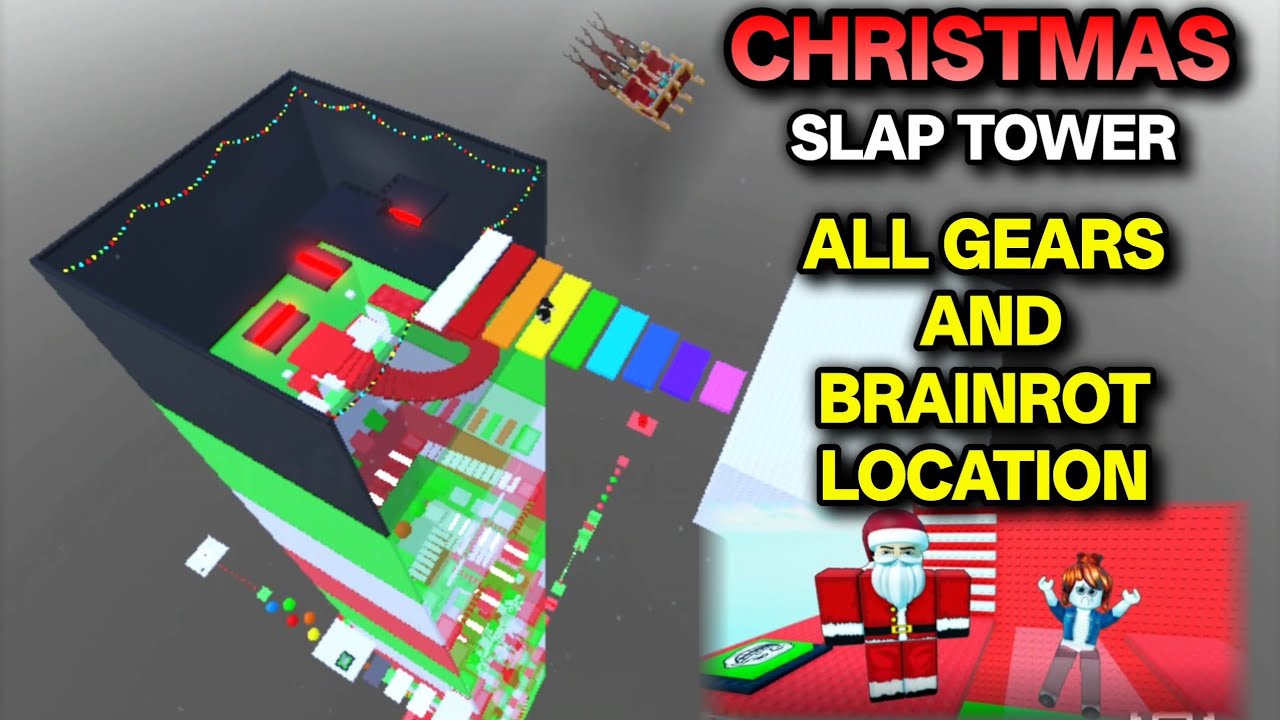
Christmas Tower uses standard Roblox movement with a festive tower layout that punishes sloppy cameras more than fancy tech. Mastering movement, camera, jump timing, and slap aim raises your clear rate faster than any gear upgrade after Free Slap. This Controls guide compares PC, mobile, and console setups and ties them to climbing safety on the Tier List.
Pair with Getting Started on day one and How to Beat when you attempt Winner!.
Shared Roblox basics
| Action | PC | Mobile | Console |
|---|---|---|---|
| Move | WASD | Left thumbstick / dynamic pad | Left stick |
| Jump | Space | Jump button | A / Cross |
| Camera | Mouse | Touch drag / gyro if enabled | Right stick |
| Equip slap | Number keys / click | Tap tool | D-pad / tool slot |
| Use slap | Click / activate | Tap activate | Trigger / RT |
Exact bind names can vary with Roblox experience settings, shift-lock, and device OS. If an input feels dead, open Roblox settings → Controls / Accessibility and confirm touch controls are not hidden by UI scale.
PC tips
- Enable shift lock if you prefer strafing while facing the next pad; disable it for precise mouse-aim jumps on odd angles.
- Raise mouse sensitivity slightly for mid-air camera corrections, but not so high that micro-aim on thin beams jitters.
- Click Free Slap only when your crosshair / facing direction points at the camper — swinging while looking at the sky wastes the knock.
- Use a higher frame rate when possible; consistent FPS steadies jump arcs.
PC players often over-sprint. Walk to edges on hard jumps. Speed is not S-tier — centered landings are.
Mobile tips
Mobile clears are absolutely viable; Christmas Tower is a Roblox title with a huge phone audience.
- Increase camera sensitivity so you can peek the next platform without huge finger swipes.
- Place the jump button where your thumb never misses during clutch moments; custom touch layouts help.
- Avoid covering the jump button while dragging the camera — claw grip (one thumb move, other thumb jump/camera) reduces mis-taps.
- Zoom out before multi-gap sections so both pads stay on screen.
- When Free Slap is equipped, make sure the activate control is not the same fat-finger zone as jump.
If your device thermal-throttles, lower graphics. Input delay from overheating feels identical to “impossible jumps.”
Console tips
- Invert look only if that is already your muscle memory across Roblox.
- Lower right-stick deadzone if camera start-up feels mushy on small corrections.
- Use vibration cues (if enabled) as a soft reminder you took a hit or landed hard — then refocus on the next pad.
- Remap if your muscle memory prefers an alternate jump button; consistency beats default purity.
Console players should watch for TV latency. Game mode on the display can shave frames that matter on lip landings.
Jump timing and lag
Network delay makes you jump late relative to what you see.
- On 80+ ms ping, jump earlier than looks correct.
- Prefer servers geographically closer when Roblox offers a choice.
- Do not spam jump mid-air expecting a second boost — Roblox gravity does not work that way here.
- After a slap knock, wait for velocity to settle before correcting; panic jumps into voids are common.
Slap aim fundamentals
Free Slap and Santa Slap both need facing direction. Practice in lobby:
- Face the target’s torso, not the floor.
- Swing once, then move — double spam often leaves you exposed on a ledge.
- On narrow beams, do not swing unless you accept mutual fall risk (Tier List).
- After you finish the tower, advanced timing lives in the Troll Guide.
Accessibility and comfort
- Take breaks every 15–20 minutes; festive colors plus height can strain eyes.
- Raise UI scale if you cannot see the jump button on a small phone.
- Colorblind filters in Roblox settings can help separate platform edges from decor snow.
- Mute music if audio cues from other players help you more than the soundtrack.
Device-specific practice drills
PC drill: Ten centered landings in a row on early floors without sprinting off edges.
Mobile drill: Five climbs to mid tower using only intentional camera peeks before each jump.
Console drill: Clear lower floors with shift-style camera corrections using only the right stick, no panicked 180s.
Log which drill fails; that device weakness is what to fix before a Winner! push.
When controls are fine but you still fail
If inputs feel responsive yet you cannot progress, the issue is route knowledge or lobby chaos — not binds. Move to How to Beat, switch servers (Players), and confirm Free Slap is equipped (Free Slap). After patches, reskim Updates in case platform spacing changed.
Clean controls turn Christmas Tower back into the “fun easy tower” the description promises. Stabilize camera, jump early on lag, swing only on wide pads, and let the festive climb feel fair again.
Frequently Asked Questions
Quick answers to the most common questions.
What are the Christmas Tower controls on PC?
Move with WASD, jump with Space, move the camera with the mouse, and equip/activate Free Slap from the hotbar with number keys and click.
Can I beat Christmas Tower on mobile?
Yes. Raise camera sensitivity, keep jump easy to reach, zoom out on hard sections, and lower graphics if the phone heats up.
Why do my jumps feel late?
High ping and display latency delay your inputs. Jump earlier than it looks, use a closer server, and enable game mode on TVs.
How do I aim Free Slap better?
Face the target’s torso on a wide platform, swing once, then reposition. Avoid swinging on thin beams where you will fall too.